![]() |
|
||||
| Home | Downloads | Support | Features |
| FAQ | NeoWiki | Trinity Forums | Bugzilla | Build Instructions |
| Donations | NeoOffice 3.0 Early Access Program |
| NeoOffice 2.2.5 now available |
|
This release adds several new features including:
- Slideshow presentations now run up to two times faster than OpenOffice.org 3.0 - Web layout view no longer loses cursor position when saving - Custom folders can be added in the Media Browser - Slideshow presentations can be run using a remote control |
Although NeoOffice is free, we ask that you donate a small amount before you download NeoOffice.
The cost and time spent on NeoOffice are trivial for a large corporation, but they are very large for the two people that operate the NeoOffice project so donations are used to help pay for NeoOffice cash expenses like bandwidth, machines, and webhosting fees that we would have to pay for ourselves.
Please consider donating a couple of dollars or Euros to help us continue to provide NeoOffice to everyone for free. If each user donated only one dollar or Euro, we could cover all of our costs for a year. If you are unable to donate, please consider volunteering a little of your time to help the NeoOffice project.
You can donate funds online using a credit card or a PayPal account. Even though we use PayPal as our credit card processor, please note that a PayPal account is not required when using a credit card. Just click on the following button to make a donation:
Important: Be sure to press the Return to NeoOffice.org button to return to our site after you complete your donation.
If you have made a donation recently, there is no requirement to donate again. Just click the Skip Donation button to go to the list of the available downloads.
Minimum Machine Requirements for NeoOffice 2.2.5To install and run NeoOffice, you must have the following:
Since NeoOffice is developed by volunteers and tested by users, we expect that users will find crashing or other serious bugs. We strongly recommend that you save your work frequently so that if you encounter a crashing bug, you will not lose much data. If you feel that you need software that has been heavily tested, we recommend that you use a commercially-supported product like Microsoft Office or Apple iWork.
Only install the versions of NeoOffice that are listed on this web site. Please do not install an unlisted version even if you downloaded it from this web site in the past. Using such unlisted versions is very risky as unlisted versions have bugs that we have fixed in the listed versions.
Lastly, when users report crashing or other serious bugs, we fix these bugs as fast as possible and release small patches that contain these bug fixes. We recommend that you get the latest bug fixes by downloading and installing the latest NeoOffice patch installer.
Installing NeoOffice 2.2.5Make sure that you read the important warnings for all users and check out the list of features and bugs before you install NeoOffice.
To install, double-click on the downloaded file in the Finder. This should cause the Disk Copy application to open. The Disk Copy application should automatically open the downloaded file and display a volume called NeoOffice on your desktop. Double-click on the NeoOffice volume. This should open a Finder window that contains a NeoOffice.pkg file. Double-click on the NeoOffice.pkg file and the NeoOffice installer should start.
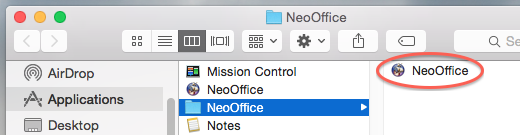
By default, the installer will create an application called NeoOffice in your /Applications folder. To launch NeoOffice, just double-click on the NeoOffice application icon in the Finder.
Important: After installing, get the latest bug fixes by downloading and installing the latest NeoOffice patch installer.
Installing Other LanguagesBy default, the installer only installs English but language packs are available for 57 other languages. To add support for any of the other languages not included in the installer, install NeoOffice 2.2.5 and then download and install the language pack for your language.
A list of available language packs can be found here.
Uninstalling NeoOffice 2.2.5To uninstall, just drag the NeoOffice application from the Finder into the Mac OS X trash can.
Uninstalling NeoOffice should have no effect on any OpenOffice.org installation that you may have as NeoOffice and OpenOffice.org have completely separate configuration and user files.